Dekkia's Blog

Capacitor? I hardly know her.
? I recently switched from Windows 10 to Linux Mint. One thing I found out while moving over is that the workflow for this blog is too complicated. This has nothing to to with the topic at hand but I wanted to mention it somewhere.
1: Intro
A while ago I bought a Squeezebox2 SB3 3rd Generation Squeezebox Squeezebox Classic. It didn't work because everything I buy is broken and most things I own stay that way for some time until I get around to fixing it.
As you can see I'm bad at framing Videos. But more important the Squeezebox works fine until I try to play back music and it reboots, forgetting its language settings in the process. Then it tries and fails again. This basically goes on forever until I pull the power plug.
When doing some research on the issue I quickly found two Blog posts on Joe's Technology Blog one Post from November 2018 that outlines general repair troubleshooting of a Squeezebox Classic and another one from December 2019 that talks about recapping the device.
?? Vielen dank Joe für die Posts, die haben mir einen haufen Arbeit erspart.
According to Joe the issue my Squeezebox has are caused by the DAC not working correctly. When the other components on the device detect a problem with it, they trigger a Reboot. That means a capacitor replacement is in order. (you can find more details on his blog under Issue 4: Crashing Instead Of Playback Starting)
The process of replacing capacitors on aging electronics either as preventive measure or to fix a specific issue is often shortened as recapping. And that's what we're doing today. I never did that on a device with surface mount components, so I'm prepared to rip off some pads. That's called foreshadowing.
2: Let's go shopping!
Based on the given component list I bought some capacitors from trustworthy manufacturers on DigiKey plus a bunch of other stuff to get above the threshold for free shipping.
The component list, a diagram with all capacitor locations and orientations as well as some purchasing considerations are in the article about recapping a Squeezebox Classic on Joe's Blog. I'm not going to repost those here because this post isn't a guide but the other one is.
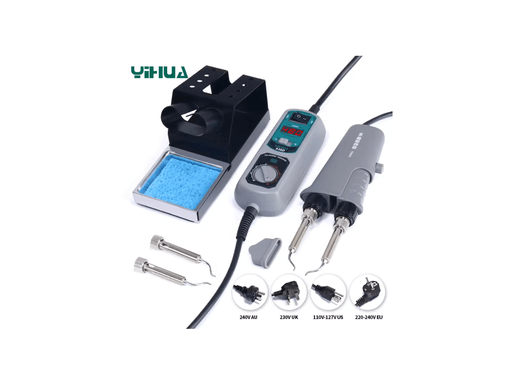
I decided to completely forego the ESR meter, since I wanted to replace all caps anyways. But what I bought where some cheap desoldering tweezers on AliExpress.
The Tweezers cost me 30,79? and the and the DigiKey order was 70,42?.
3: Taking it apart
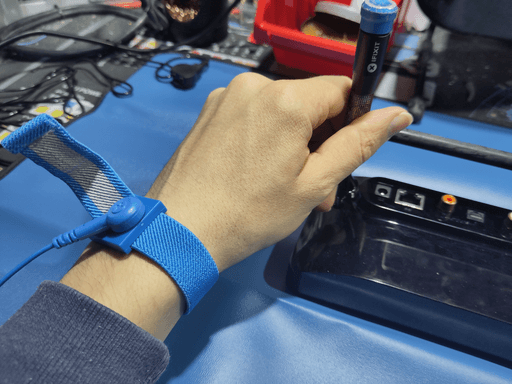
Before soldering anything I had to take it apart. Because of Joe's insistence on looking out for static electricity I wore a antistatic bracelet maybe for the first time ever.
I believe ESD protection is a myth invented by big Static to sell more discharge.
There's two screws on the back that hold the glossy front panel on. They screw right into the plastic of the panel and take a bit of force in the first few turns.
Holding the motherboard in place are more screws which are a bit shorter than the one on the outside. Mixing them up during reassembly would likely crack some plastic.
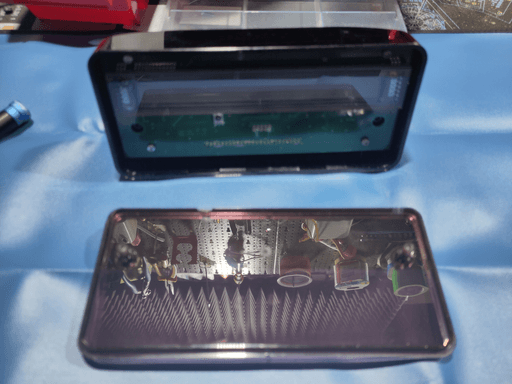
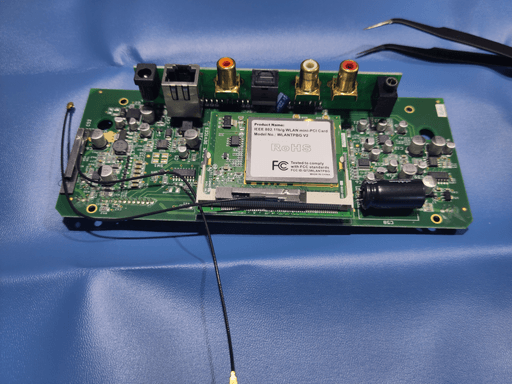
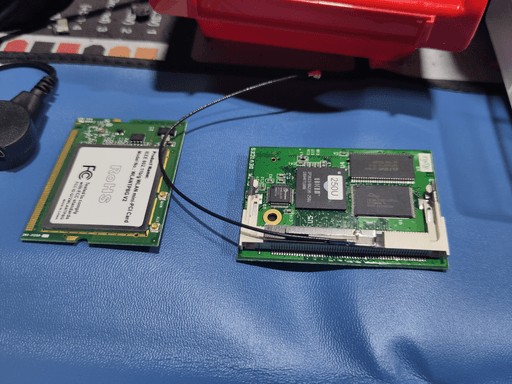
After the motherboard was out I disconnected the wifi antenna cables and removed the Wifi-Board and CPU-Boards seperately.
4: Desoldering the old Capacitors
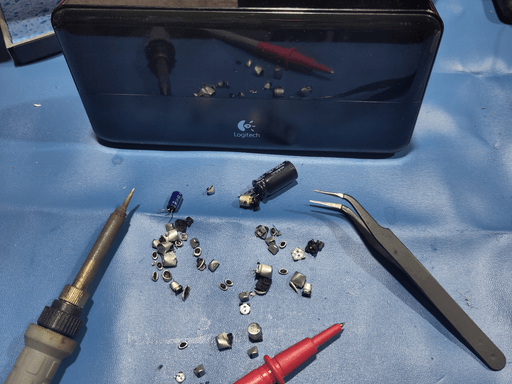
Now it was time to remove the caps. The first one I did with the desoldering tweezers, which worked well enough. On the second one I couldn't get the tips of the tweezers close enough to the pads and lifted one. It's still connected but just barely. On the third capacitor I ripped one of the pads clean off.
So far so bad.
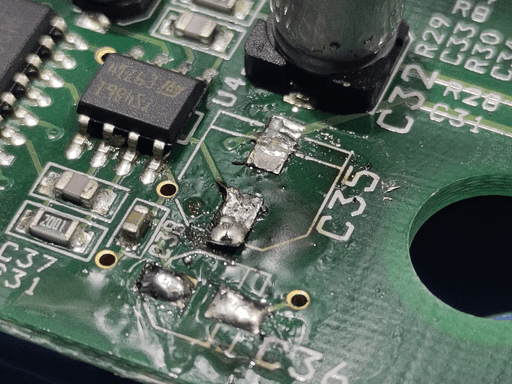
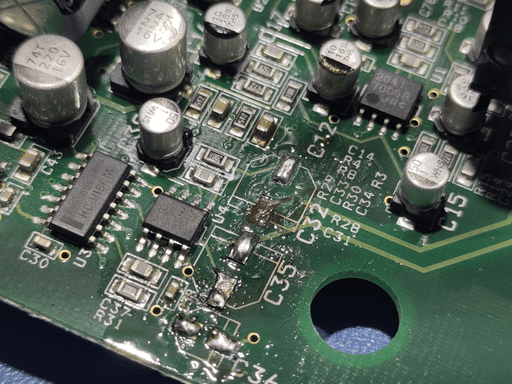
This was the point where I realized that I won't be able to use the desoldering tweezers with most capacitors because they'd clash with other components.
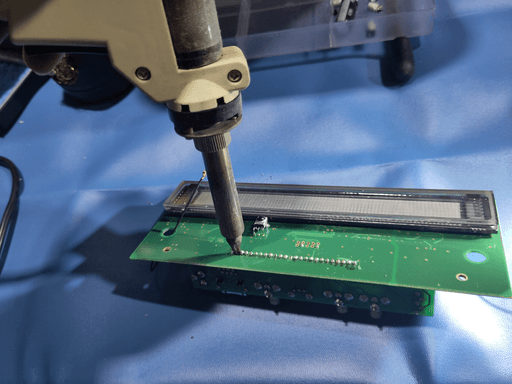
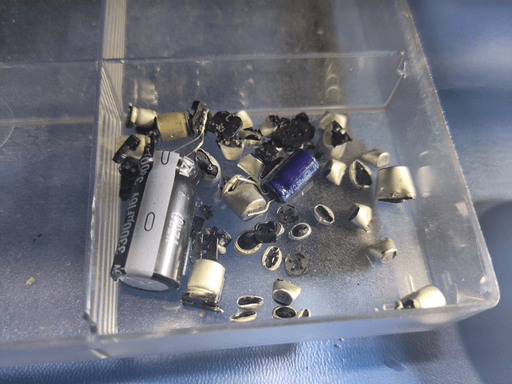
So I tried a more barbaric approach: I first cut off the cap right above the plastic socket with those wire cutters they always give you for free when you buy a 3D Printer. Then I used the same cutters to cut the protruding legs flush. That way the plastic socket could be lifted away and the remaining parts of the legs could be desoldered.
This probably also puts some stress on the pads, but way less than heating each side individually back and forth while trying to slowly lift the component away.
At this point I figured I should desolder the IO-Board to get better access to the caps under it. I'm sparing you the details, but I couldn't get it fully desoldered for the live of me and decided to give up before breaking something. I'll just have to work around that board.
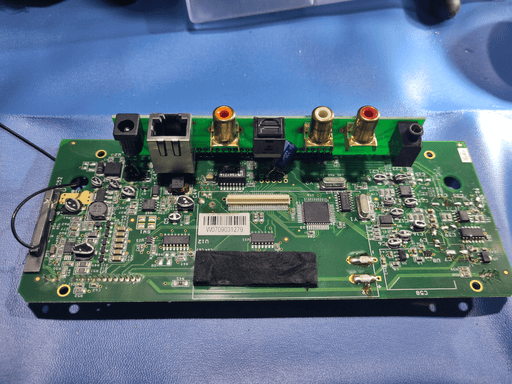
So I went ahead and removed all remaining caps with the cutting-method and didn't lift a single pad. I'll be keeping this method in mind for the future.
5: And now do everything backwards
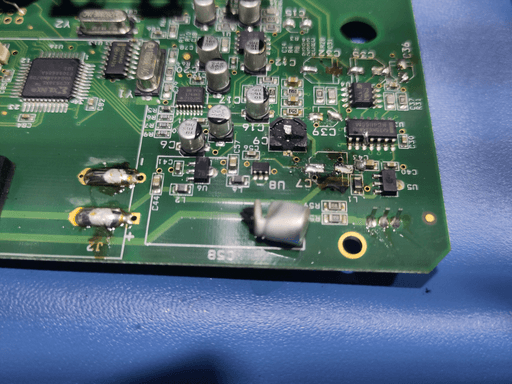
Now it was time to put the new caps back on. The first few where a bit wonky, but the connection was solid. I checked each one under the microscope to make sure it's soldered down properly. I'd like to say that my soldering got better towards the end but that would be a lie.
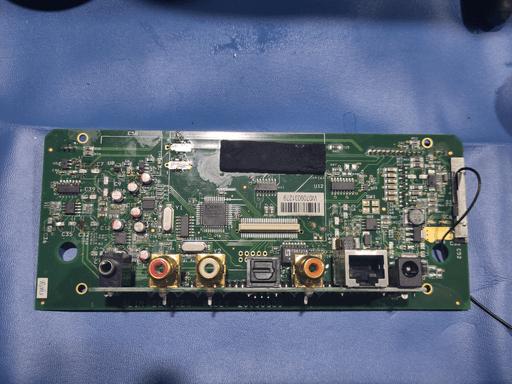
Next up where the caps where I ripped of the pads. On the first one the trace connected to the output board on one side and to a via on the other. The trace connected to the via disappeared under the display on the other side.
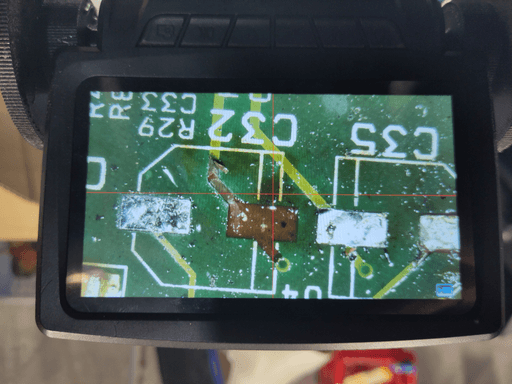
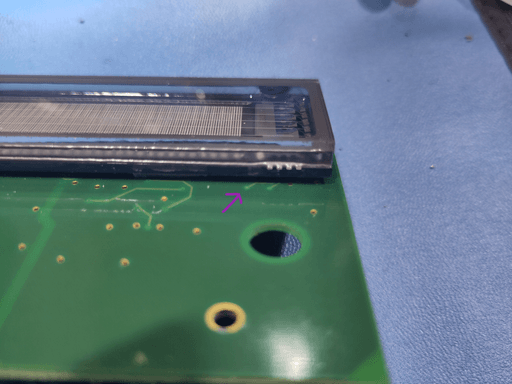
I scraped off parts of the solder mask and used some magnet wire to reconnect the traces I broke. I did the same thing on both caps because I didn't trust the pad on the second cap that was just barely hanging on. I don' think I have to say that I haven't done this before very often but I'm doing it anyways.
Then I used some UV curing solder mask to fix the wires in place and some hot glue to hold the capacitors down. I'm normally not a fan of HotSnot? but I guess this is a good application for it.
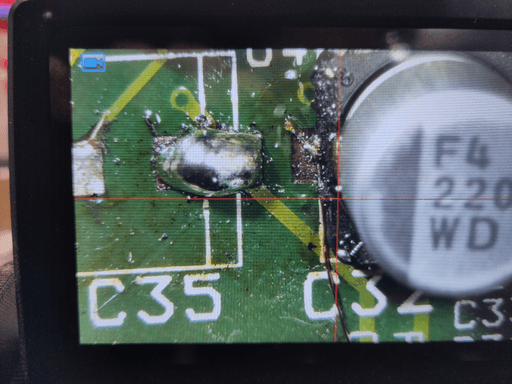
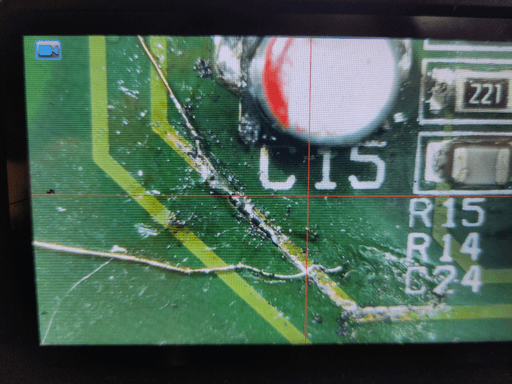
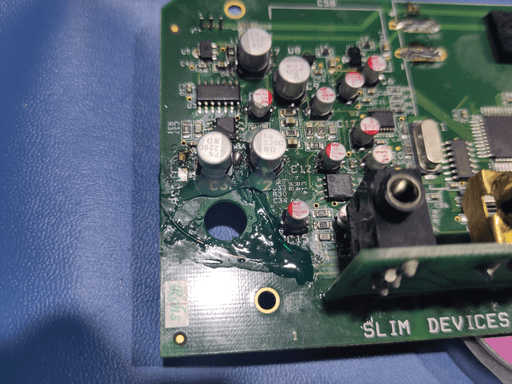
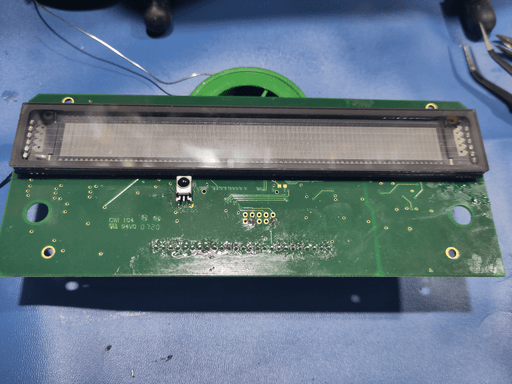
I then continued to but the remaining caps on. The location guide by Joe was a great help. And as promised my soldering didn't improve on bit.
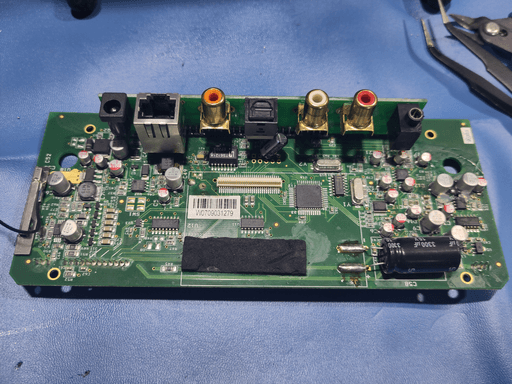
6: Final screws
Now that all caps where soldered down, I could put the whole thing back together. First where the CPU and WIFI boards.
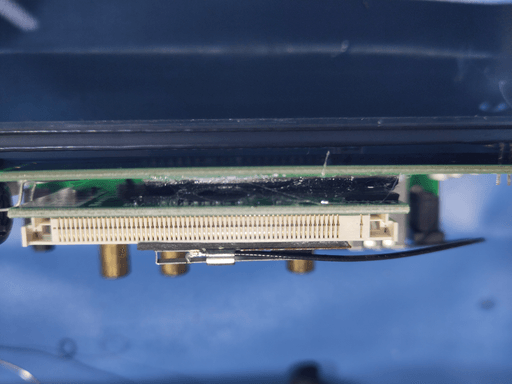
Since I already broke the sigil of not using hot glue I decided to put some on the standoff that allegedly used to be foam at some point in time. That way the CPU board doesn't hang off it's connector alone.
Then I connected the Wifi Antennas and put the motherboard back into the case for testing.
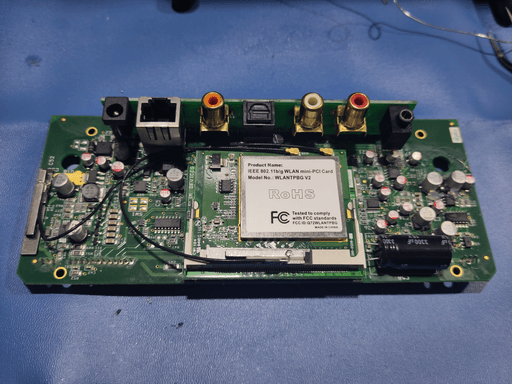
7: testing, testing; 1, 2, 3
I wish stuff always worked out that well. Now I only had to put the front facia back on and I was done.
If you liked this post or found it helpful, let me know at @dekkia@dekkia.com in the fediverse. You can also follow me there or subscribe to the RRS-feed of this blog if you want to keep up to date with what I'm doing.
~ Dekkia